
TUNE MFD Guide
The TUNE MFD and its own apps: the keys, the home screen, Settings, phones, CarPlay and Android Auto, music, radio, cameras and Software Update.
The TUNE MFD is TUNE’s multi-function display for performance cars. It fits in the car’s dash, runs on the car’s power and follows the ignition. Its 7-inch touchscreen, 1440 × 720, shows the TUNE Application’s dashboard, wireless CarPlay and Android Auto, phone calls, music, video, radio and the cameras. Its sound runs through a DSP amplifier.
 Zoom
This guide covers the MFD and its own apps. The TUNE Application Guide covers the dashboard, and the Wiring Guide covers fitting, the rear panel and every connection.
| Screen | 7-inch touchscreen, 1440 × 720, landscape |
|---|---|
| Keys | HOME, volume down and up, TUNE, previous and next, VOICE |
| Card slots | SIM, and TF for an SD card |
| USB | USB-C1, the high-speed charging port, 21 W, and USB-C2 |
| Phones | Bluetooth calls and music, one phone at a time |
| CarPlay and Android Auto | Wireless |
| Radio | FM 87.5–108.0 MHz, AM 522–1620 kHz |
| Cameras | Rear and front camera inputs, and a dash cam |
| Sound | DSP with a 40-band equaliser, time alignment, four RCA pre-outs and a subwoofer output |
| Languages | 10, English among them |
Seven keys run along the bottom of the frame, under the touchscreen. The MFD has no power key and no Back key.
 Zoom
- HOME opens the home screen from any app.
- − turns the volume down one step.
- + turns the volume up one step.
- TUNE opens the TUNE Application. On the TUNE Application, it opens CarPlay or Android Auto. See The TUNE Key.
- ⏮ goes to the previous song, video or radio station.
- ⏭ goes to the next song, video or radio station.
- VOICE asks Siri with CarPlay connected, or Android Auto’s voice assistant with Android Auto connected. With neither connected, it opens CarPlay.
⏮ and ⏭ work in Music, Video, Radio and Android Auto. CarPlay uses the controls on its own screen.
The keys’ lights take the colour chosen in Button Light Colour.
Two card slots sit on the left side of the frame, as seen from the front, in its lower half. The SIM slot is above the TF slot.
 Zoom
- SIM is the SIM card slot.
- TF takes an SD card (microSD), for Music and Video.
A USB stick isn’t read for music or video. Settings, then About shows the SD card’s free space.
The TUNE MFD has no power key. It follows the car’s ignition: it wakes when the ignition turns on, and sleeps 15 seconds after the ignition turns off.
The MFD starts when it first has power, as when the car’s battery is connected. From then on it sleeps and wakes with the ignition. The Wiring Guide covers its power wiring.
When the MFD starts, the TUNE Application opens automatically: see Open the TUNE Application. On an MFD that doesn’t have the TUNE Application, Software Update installs it: see Update the MFD.
 Zoom
As soon as the ignition turns off:
- The screen and the keys’ lights go dark, and the sound is muted.
- A call on the MFD moves to the phone.
- Music, Video and Android Auto pause.
- The screen takes no touches. HOME and the volume keys still work.
If the ignition turns on again within 15 seconds, as after a stall or a start-stop restart, the screen, the sound, calls and media resume. The phone stays connected. During a CarPlay call, CarPlay disconnects, then connects again with the call.
After 15 seconds with the ignition off, the MFD sleeps. Bluetooth, CarPlay and Android Auto disconnect, and Wi-Fi turns off.
The MFD wakes and the screen turns on. Bluetooth turns on again, and Wi-Fi turns on again if it was on.
- The last phone used reconnects while Connect Automatically is on. Bluetooth calls connect first, then wireless CarPlay or Android Auto.
- Music from the SD card resumes if it was playing. The phone’s music waits for a tap on the play button.
- The radio resumes if it was playing.
- A video stays paused.
- The DSP’s sound settings are restored.
Troubleshooting
If the screen stays dark with the ignition on
Turn the ignition off for at least 15 seconds, then turn it on again. If the screen still stays dark, check the MFD’s power wiring.
If CarPlay or Android Auto takes a long time to connect after the car starts
Wireless CarPlay and Android Auto connect after Bluetooth. They connect sooner with no saved Wi-Fi network in range of the MFD.
The home screen is the TUNE MFD’s first screen. HOME opens it from any app.
 Zoom
- The clock, at the top left, shows the time and the date. It follows Date and Time.
- The dock, along the bottom, holds TUNE, CarPlay, Android Auto, Radio, Music, Phone and Settings.
- Apps, above the end of the dock, opens a row with Video, Dash Cam and DSP. Tap Apps again to close the row.
 Zoom
| Tile | What it opens |
|---|---|
| TUNE | The TUNE Application, as the TUNE key does |
| CarPlay | Wireless CarPlay |
| Android Auto | Wireless Android Auto |
| Radio | FM and AM radio |
| Music | Songs from the SD card or the phone: Music |
| Phone | Calls, recent calls and contacts: The Phone App |
| Settings | The MFD’s settings |
| Video, in Apps | Videos from the SD card: Video |
| Dash Cam, in Apps | The dash cam |
| DSP, in Apps | The sound processor: Sound and the DSP |
The home screen’s tiles are fixed. It follows the MFD’s Appearance, light or dark.
The TUNE MFD has no Back key.
- HOME leaves any app for the home screen.
- Inside an app, a page below the first has its own back control at the top.
- A sheet over a page has its own buttons, such as Cancel, Close or Done.
- A full-screen picture, such as a camera’s or a video’s, has a close button (×) at the top left.
TUNE switches between the TUNE Application and CarPlay or Android Auto.
 Zoom
- From any other screen, it opens the TUNE Application.
- On the TUNE Application, it opens CarPlay or Android Auto, whichever is connected. With neither connected, it opens CarPlay.
- On CarPlay or Android Auto, it opens the TUNE Application again.
The TUNE tile on the home screen opens the TUNE Application too.
The pull-down panel holds the controls for Wi-Fi, Bluetooth, the screen’s brightness, the cameras and the volume. It opens over any app.
Drag down from the top edge of the screen. The panel opens.
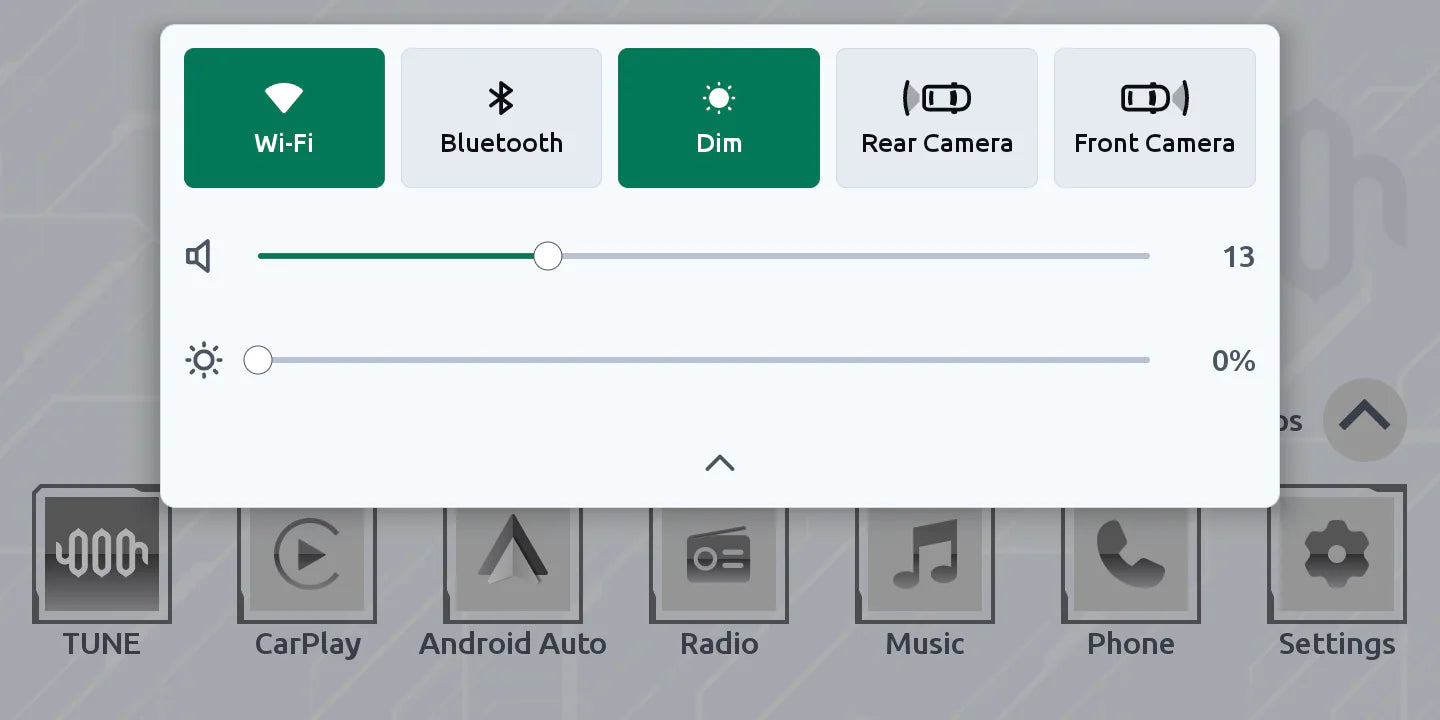 Zoom
Wi-Fi on and the screen dimmed - Tap a tile, or drag a slider.
- Tap the tab along the panel’s bottom edge to close it. A tap outside the panel, or a drag up, closes it too.
| Control | What it does |
|---|---|
| Wi-Fi | Turns Wi-Fi on or off |
| Bluetooth | Opens Settings, then Bluetooth |
| Dim | Dims the screen. Tap it again for full brightness |
| Rear Camera | Shows the rear camera |
| Front Camera | Shows the front camera |
| Volume | The volume, from 0 to 40 |
| Brightness | The screen’s brightness, as a percentage |
When the car’s lights turn on, the MFD dims the screen. When they turn off, it brightens the screen.
- − and + change the volume one step at a time, from 0 to 40. The volume shows on the screen for 2 seconds.
- The panel’s Volume slider sets the volume too.
- Calls and navigation have volumes of their own, in Settings, then Sound.
 Zoom
Settings holds the TUNE MFD’s own settings. Open Settings from the home screen. Its categories run down the left: General, Sound, Bluetooth, Wi-Fi, Cameras and About. Tap a category to show its page.
Settings, then General holds the MFD’s look and its clock.
 Zoom
- Appearance: Light, Dark or Automatic. Automatic is dark while the car’s lights are on. Light is the default. The home screen, Settings, the panel, Music, Radio, Phone, DSP and Video’s folders follow it. Video’s player and the cameras are always dark.
- Button Light Colour: the colour of the keys’ lights. Tap one of seven colours, Blue, Green, Cyan, Red, Magenta, Yellow or White, or the circle with a diagonal line for off. The chosen colour has a ring and a tick. Until a colour is chosen, the keys keep their factory colour.
- Date and Time: see Set the Date and Time.
Settings, then General, then Date and Time has three switches: 12-Hour Clock, Set Date and Time Automatically and Set Time Zone Automatically. Under them are Date, Time and Time Zone, to set manually. While a switch sets them automatically, their rows are dimmed, and a tap on one says which switch to turn off.
 Zoom
To set the clock manually:
- Turn off Set Date and Time Automatically.
- Tap Date, set the Day, Month and Year, and tap Set.
- Tap Time, set the Hour and Minute, and tap Set. The page says Clock updated.
To set the time zone manually, turn off Set Time Zone Automatically, tap Time Zone, and tap a place. The list is in order of each zone’s offset, then of place.
Important
Software Update requires the correct date and time. With the clock wrong, it says “The TUNE MFD’s clock is wrong. Turn on Set Date and Time Automatically.”
Settings, then Sound holds:
- Call Volume and Navigation Volume: the volume of calls, and of navigation prompts.
- Touch Sounds: the screen’s clicks and the keypad’s tones, on or off.
- Notification Sounds: on or off.
 Zoom
The equaliser and the speakers’ settings are in the DSP app: see Sound and the DSP.
The TUNE MFD uses Wi-Fi, a network or a phone’s hotspot, for Software Update and for the TUNE Application to reach TUNE’s service. CarPlay and Android Auto don’t use it: they make their own wireless connection to the phone.
To join a network:
- Open Settings, then Wi-Fi.
Turn on Wi-Fi. The networks the MFD finds show under Networks.
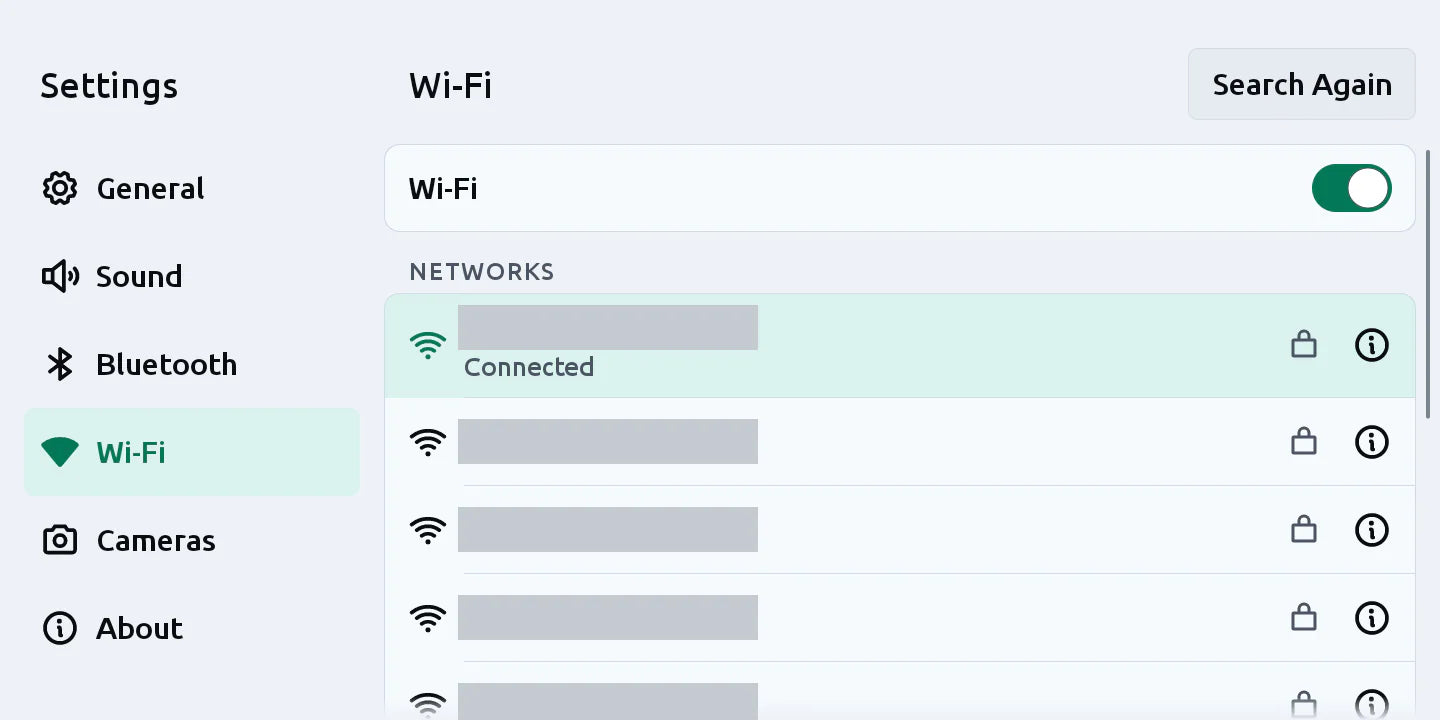 Zoom
The network names are covered - Tap a network.
- If the network has a password, enter it, and tap Connect. The network shows Connected.
Search Again searches for networks again. A network’s details button shows its Security, Signal, Frequency and BSSID, and while it’s connected, its IP Address.
To disconnect from the connected network, tap it, then tap Disconnect. To forget it and its password, open its details, tap Forget, then tap Forget again.
Note
Wireless CarPlay and Android Auto work best with the MFD on no Wi-Fi network, or on a 5 GHz one.
- Settings, then Bluetooth pairs and connects phones: see Phones and Calls.
- Settings, then Cameras sets the format of cameras not supplied by TUNE: see Camera Format.
Settings, then About holds the language, Software Update, the MFD’s versions and storage, and its restart and reset.
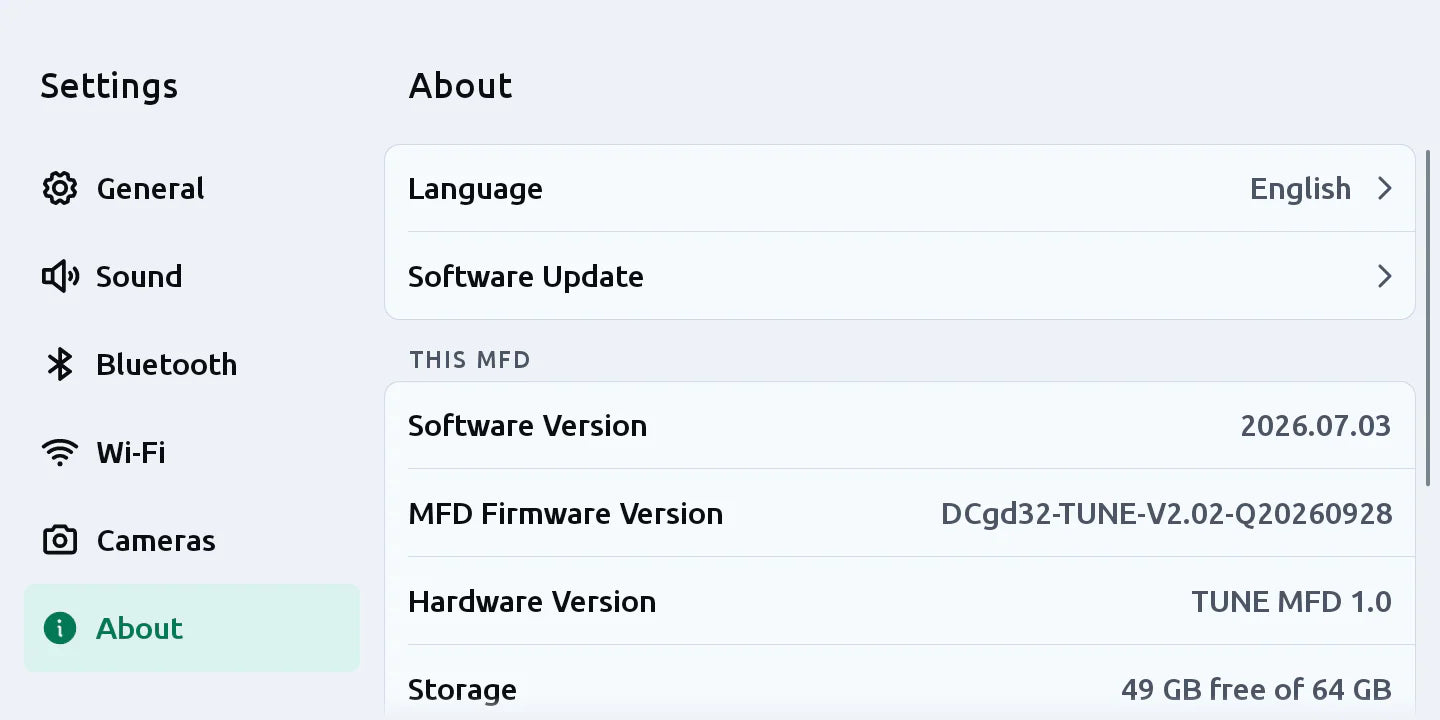
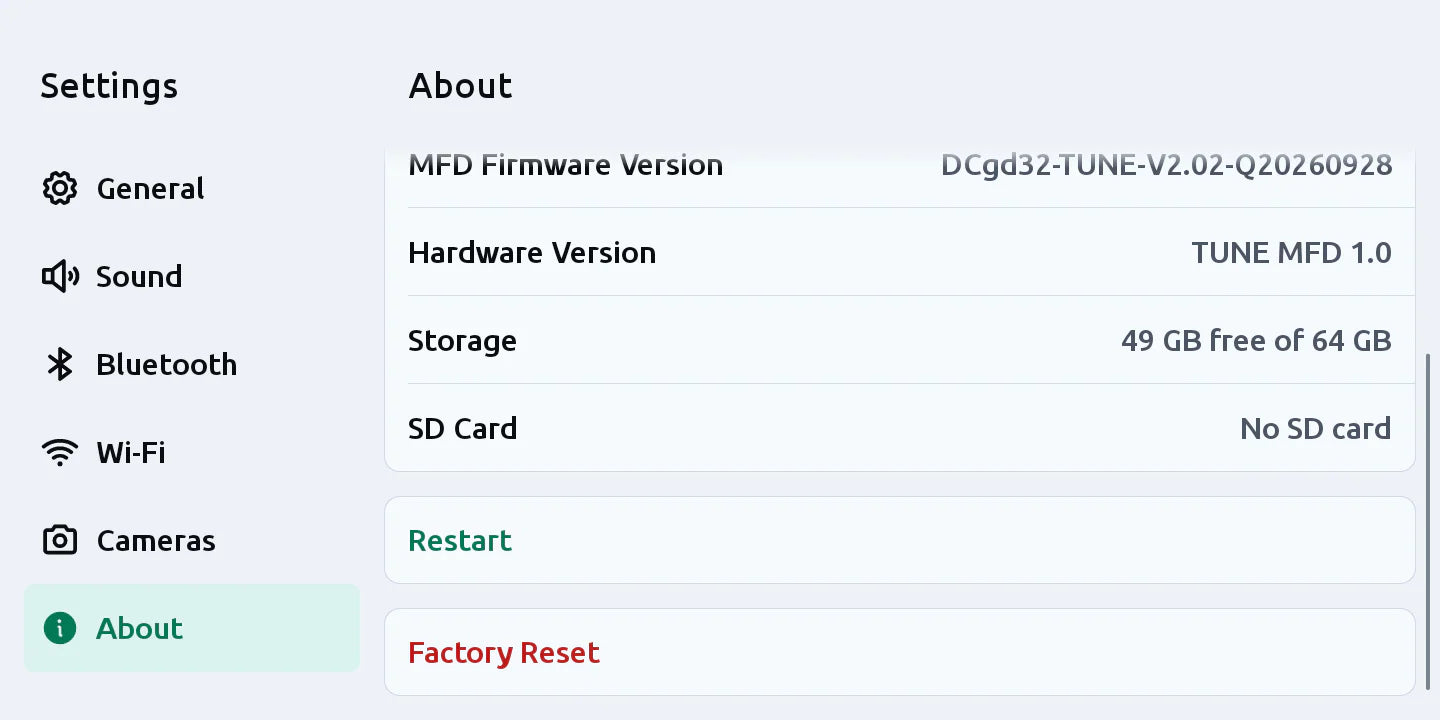
| Row | What it shows |
|---|---|
| Language | The MFD’s language: see Change the Language |
| Software Update | Updates: see Software Update |
| Software Version | The date of the MFD’s software, such as 2026.07.03 |
| MFD Firmware Version | The version of the MFD firmware |
| Hardware Version | TUNE MFD 1.0 |
| Storage | The MFD’s free storage, of its total |
| SD Card | The SD card’s free space, or No SD card |
| Restart | See Restart the MFD |
| Factory Reset | See Factory Reset |
A red badge on About and on Software Update means an update is waiting.
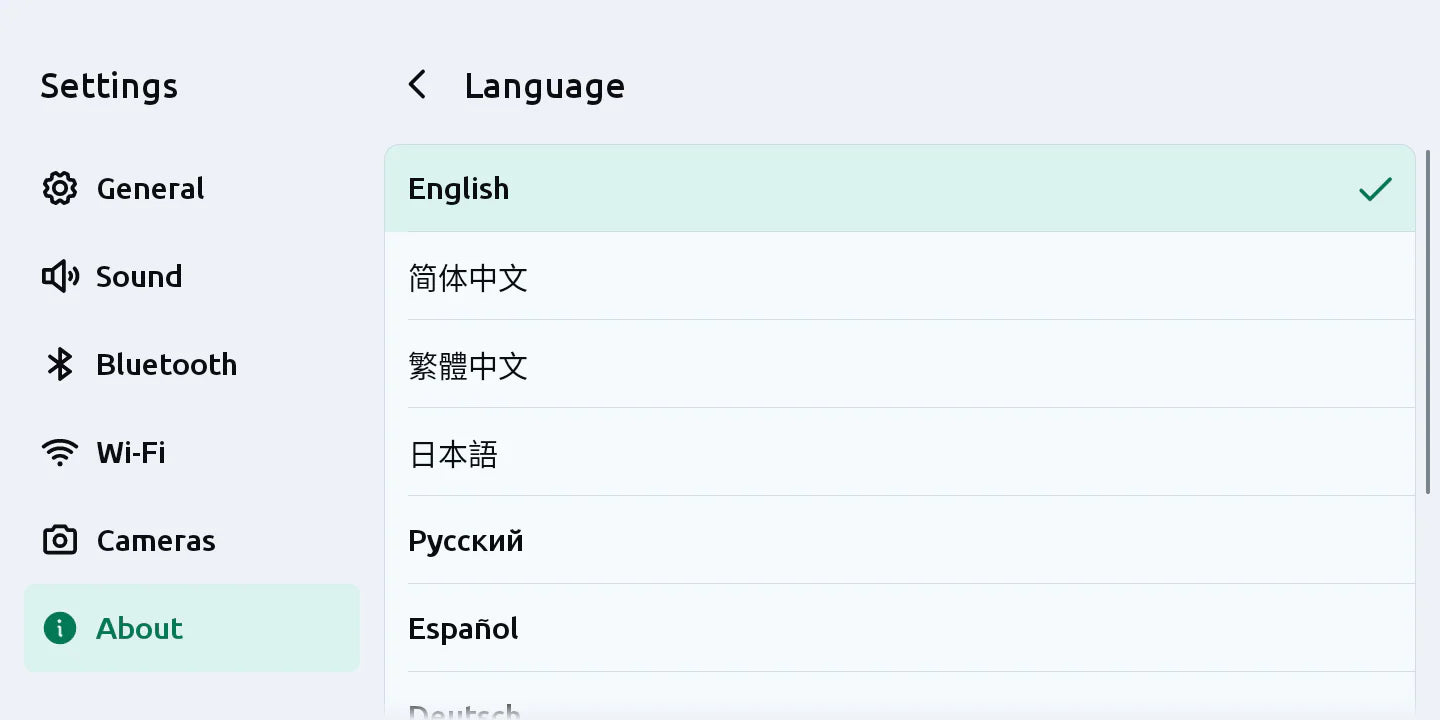
Open Settings, then About, then Language.
 Zoom
- Tap a language. The whole MFD changes to it.
The 10 languages are English, 简体中文, 繁體中文, 日本語, Русский, Español, Deutsch, العربية, Português and Français.
The TUNE MFD connects to one phone at a time over Bluetooth, for calls, contacts and the phone’s music. Wireless CarPlay and Android Auto start over the same connection.
A phone can find the MFD whenever the MFD is awake.
- Open Settings, then Bluetooth.
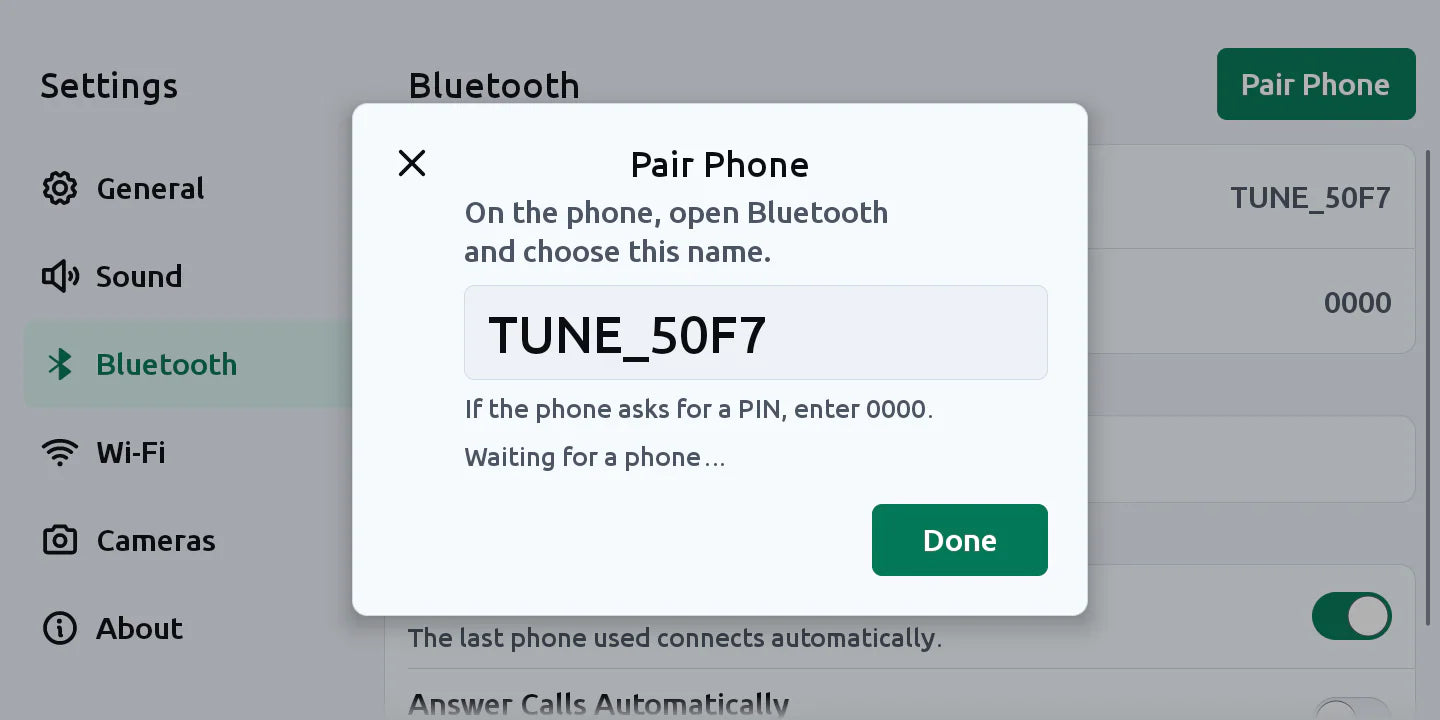
Tap Pair Phone. The sheet shows the MFD’s name as a phone sees it: TUNE_ and four characters, such as TUNE_50F7.
 Zoom
- On the phone, open Bluetooth and choose that name.
- If the phone asks for a PIN, enter the PIN the sheet shows.
- Wait until the sheet says the phone is connected. The sheet closes automatically.
For the phone’s contacts and recent calls on the MFD, allow the phone to share them when it asks.
Settings, then Bluetooth shows the TUNE MFD Name and the PIN, then the connected phone under Phone, the other phones under Paired Phones, and Options.
 Zoom
- The connected phone says where its calls and audio go: Connected · calls and audio, or through CarPlay or Android Auto.
- Connect connects a paired phone. Disconnect the connected phone first: one phone connects at a time.
- Disconnect disconnects the connected phone. During a call, it asks first, and the call moves to the phone.
- Forget forgets a paired phone. It asks first.
Note
While CarPlay or Android Auto is connected, Connect asks first: CarPlay or Android Auto is unavailable while the MFD connects the phone.
- Connect Automatically: the last phone used connects automatically.
- Answer Calls Automatically: incoming calls are answered on the MFD.
Open Phone from the home screen. Its pages run down the left: Recents, Contacts and Keypad. Under them is the connected phone’s name, which opens Settings, then Bluetooth, or during a call, who the call is with and its time, which opens the call.
- Recents lists the phone’s recent calls: Incoming, Outgoing and Missed. Calls of one kind to one number in a row show as one, such as Outgoing (4). Get Recent Calls gets them the first time.
- Contacts lists the phone’s contacts. They come from the phone the first time the page opens after it connects. Update gets them again.
- Keypad dials a number. As digits are entered, Matching Contacts shows the contacts with those digits.
A tap on a call or a contact calls it. Clear clears the MFD’s copy of the recent calls or the contacts. The phone keeps its own.
Without a phone connected, each page says No Phone Connected, with Open Bluetooth.
 Zoom
An incoming call rings with Decline and Answer, on the call screen or in a window over other apps.
- Drag the window anywhere on the screen. It stays there for the rest of the call.
- Tap the window to open the call screen.
The call screen shows who the call is with, by the name in the phone’s contacts or else the number, and the call’s time. Its controls run along the bottom:
- Mute turns the MFD’s microphone off, and on again.
- Keypad shows the keypad, for the tones a phone menu asks for.
- Use Phone moves the call’s audio to the phone, and Use Car moves it back.
- End ends the call.
The minimise button, at the top left, leaves the call in its window over other apps.
When the ignition turns off, a call moves to the phone. A call with no number shows as No Caller ID.
Calls in CarPlay show on CarPlay’s own screen. Over other apps, a window shows Call in CarPlay and the call’s time. Tap it to open CarPlay.
Troubleshooting
If the phone doesn’t list the MFD
Open Settings, then Bluetooth and check that the page shows the TUNE MFD Name. If it says Bluetooth Unavailable, restart the MFD: see Restart the MFD.
If Connect says to disconnect another phone first
One phone connects at a time. Tap Disconnect on the connected phone, then Connect on the other.
If Contacts or Recents stays empty
Check that the phone shares its contacts and recent calls with the TUNE MFD. Then tap Get Contacts or Update on Contacts, or Get Recent Calls on Recents.
The TUNE MFD runs wireless CarPlay and wireless Android Auto. The phone first connects over Bluetooth, then joins a wireless network the MFD makes for them.
- Pair the phone with the MFD: see Pair a Phone.
- On the home screen, tap CarPlay for an iPhone, or Android Auto for a phone that runs it.
- Follow the prompts on the phone.
Once CarPlay connects, the iPhone’s calls and music go through CarPlay. Settings, then Bluetooth then says Connected · calls and audio through CarPlay, or “through Android Auto” for Android Auto.
CarPlay and Android Auto take the whole screen.
- HOME leaves them for the home screen.
- TUNE switches between them and the TUNE Application: see The TUNE Key.
- VOICE asks Siri in CarPlay, or the voice assistant in Android Auto.
- ⏮ and ⏭ work with Android Auto. CarPlay uses the controls on its own screen.
- With the car’s lights on, CarPlay and Android Auto switch to night mode.
When the MFD sleeps, CarPlay and Android Auto disconnect. They connect again after it wakes.
Troubleshooting
If CarPlay or Android Auto is slow, or disconnects
Turn off Wi-Fi in the pull-down panel. CarPlay and Android Auto work best with the MFD on no Wi-Fi network, or on a 5 GHz one.
If CarPlay or Android Auto stops while another phone connects
CarPlay and Android Auto are unavailable while a phone connects in Settings, then Bluetooth.
Music plays songs from the SD card and from the phone. Video plays videos from the SD card. Both read only an SD card in the TF slot: see The Card Slots.
Music reads a folder called Music at the top of the SD card, and Video a folder called Video.
 Zoom
- On a computer, make a folder called Music at the top of the SD card, and a folder called Video.
- Add songs to Music, and videos to Video. Songs and videos can be in folders of their own inside them.
- Insert the SD card into the TF slot.
Music and Video show the folders as they are on the SD card, 16 folders deep at most. Folders with nothing to play are left out.
Open Music from the home screen. What’s playing is on the left, under Phone and SD Card, which choose the source. The SD card’s Folders and Playlists are on the right.
 Zoom
- Tap Folders.
- Open a folder, then tap a song. It plays, then the songs after it.
Play and Shuffle play a whole folder. Under the song are previous, play and next, shuffle and repeat. Repeat goes from off, to all, to this song. Drag the song’s timeline to move through it.
- Music keeps its place. After the car starts, songs from the SD card resume if they were playing.
- An SD card taken out while a song plays pauses Music, and Music says “The SD card was taken out.” With the same songs back within a minute, Music resumes.
- A navigation prompt lowers the music while it speaks.
- Another app that takes the audio, such as the radio, pauses Music.
Playlists are on the Playlists tab. Each holds songs from the SD card.
 Zoom
- Tap Playlists, then New Playlist.
- Enter a name, and tap Create.
- Tap Folders, then tap + beside a song.
- Tap the playlist. Music says “Added to” and the playlist’s name.
Edit shows each song’s controls to move or remove it, and Done ends editing. A playlist can be renamed or deleted. After a removal or a deletion, Undo restores it. A playlist keeps its songs when the SD card is taken out and reinserted.
Tap Phone at the top of Music to play the connected phone’s music over Bluetooth.
 Zoom
- Music shows the song’s title, artist and album, as the phone sends them. A song with no details shows Not Provided.
- Music never starts the phone’s music automatically. After the car starts, tap the play button.
- With no phone connected, Music says No Phone Connected, with Open Bluetooth.
- While CarPlay or Android Auto is connected, the phone’s music plays there. Music says CarPlay Connected or Android Auto Connected, with a button that opens it.
Open Apps, then Video, on the home screen. Video shows the SD card’s Video folder, four cards to a row: folders first, then videos, each with its length and how far it was watched.
 Zoom
- Open a folder, if the video is in one.
- Tap a video. It plays over the whole screen.
The player has buttons to go back or forward 10 seconds, previous and next, and a button that switches between the whole picture and filling the screen. The close button (×), at the top left, goes back to the folders. The play button along the bottom of the folders resumes the video left unfinished last.
A video resumes from where it was left. One left in its first 10 seconds, or 95% of the way through, starts from the beginning. HOME, the ignition turning off and the MFD sleeping each pause it.
Troubleshooting
If Music or Video says “No SD Card”
Insert an SD card into the TF slot. A USB stick isn’t read for music or video.
If Music says “No Music Folder”, or Video “No Video Folder”
Make a folder called Music, or Video, at the top of the SD card: see Prepare an SD Card.
If a video says “This Video Can’t Be Played”
The file may be damaged, or in a format the TUNE MFD can’t play. Tap Next Video, or Try Again.
If Music says “Music is unavailable while another app is using the audio.”
Another app is using the audio, as a call does. Tap the play button again once it has finished.
The TUNE MFD has an FM and AM radio. The Wiring Guide covers its antenna.
Open Radio from the home screen. The station is on the left: FM and AM, the frequency, the controls and the tuning dial. Favourites and Stations are on the right. The radio plays when its screen opens, unless it was paused.
 Zoom
- Tap FM or AM.
- Tune a station in one of these ways:
- Tap the next-station or previous-station button to seek the next station up or down.
- Tap the step buttons beside the tuning dial to step one channel up or down.
- Drag the tuning dial.
- Tap the keypad button, enter the frequency, and tap Tune.
 Zoom
The bands are fixed: FM from 87.5 to 108.0 MHz in steps of 0.1 MHz, and AM from 522 to 1620 kHz in steps of 9 kHz. Stations show by their frequency.
- Tap Stations.
- Tap Search for Stations. The radio searches the band and lists every station it finds. Stop ends the search.
Update Stations searches again and replaces the list. If the search finds nothing, the radio says No Stations Found: try again where reception is better.
- Tune the station.
- Tap the heart. The station is on the Favourites tab.
 Zoom
Edit shows each favourite’s controls to move or remove it, and Done ends editing. After a removal, Undo restores the favourite.
⏮ and ⏭ go to the previous or next favourite on the band. With no other favourite, they seek.
The radio plays while no other app is playing.
- Music, Video, CarPlay, Android Auto and the TUNE Application, opened from the home screen, stop the radio.
- A navigation prompt pauses the radio, and the radio resumes after it.
Troubleshooting
If the radio says “Radio Unavailable” or “The tuner isn’t responding.”
Try again later. If it stays, restart the MFD: see Restart the MFD.
If the radio says “The radio is unavailable while another app is using the audio.”
Another app is using the audio, as a call does. Tap the play button again once it has finished.
If the search finds no stations
Check the radio antenna’s connection, and try again where reception is better.
The TUNE MFD shows a rear camera and a front camera, and runs a dash cam. The Wiring Guide covers connecting the cameras and the dash cam.
The rear camera shows over the whole screen as soon as the car is in reverse, whatever app is open. It stays in front until the car leaves reverse. HOME, and the close button (×) at the top left, close it. The camera shows automatically only with the main harness’s Reverse Trigger wire connected to the car’s reverse signal.
During a call, the call window keeps clear of the camera’s picture.
- Open the pull-down panel.
- Tap Rear Camera or Front Camera. The camera shows over the whole screen.
- Tap the close button (×) at the top left to close it.
TUNE’s cameras require no setting. For a camera not supplied by TUNE, choose its format.
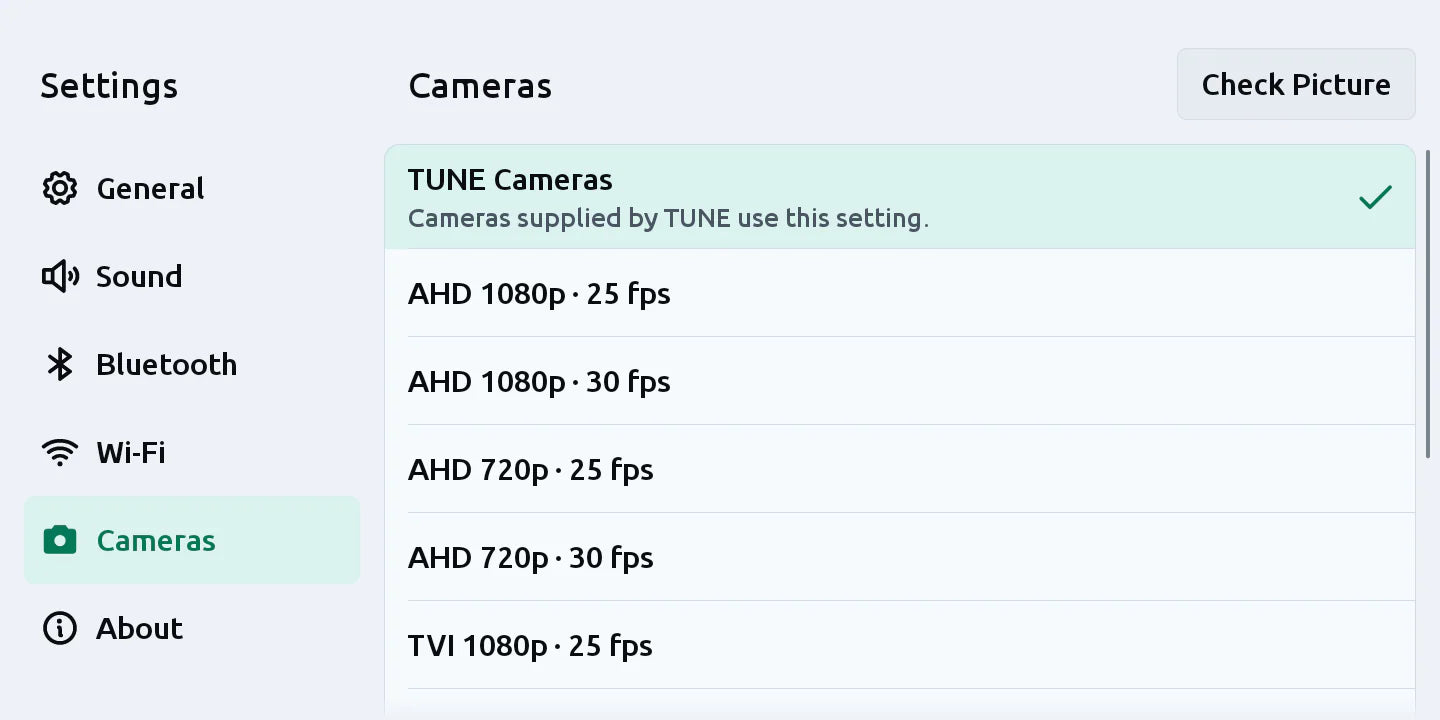
Open Settings, then Cameras.
 Zoom
- Tap the camera’s format: AHD or TVI at 1080p or 720p, at 25 or 30 fps, or CVBS PAL or NTSC. The page says the cameras will use it the next time they open.
- Tap Check Picture to see the rear camera with it.
TUNE Cameras, at the top of the list, is the format cameras supplied by TUNE use. It’s the default.
Open Apps, then Dash Cam, on the home screen. The TUNE Dash Cam is sold separately. The Wiring Guide covers connecting it.
Troubleshooting
If a camera’s picture stays black
Check the camera’s connection. For a camera not supplied by TUNE, choose its format in Settings, then Cameras, then tap Check Picture.
The TUNE MFD’s sound runs through its DSP, a sound processor and amplifier. The DSP app sets the equaliser, the balance between the speakers, the subwoofer, the effects and the levels. Open Apps, then DSP, on the home screen. Its pages are Equaliser, Fader, Subwoofer, Effects and Advanced.
The DSP app keeps every setting, and sets the DSP again each time the MFD wakes or starts.
- A preset: Flat, Pop, Blues, Classical, Jazz, Rock, EDM, Metal, Vocal or Cinema.
- Curve: drag the curve’s points to shape it.
- 40 Bands: set each band’s level, from −12 dB to +12 dB, and its Q Value.
 Zoom
The driver’s own curve is the Custom preset.
Drag the dot to move the sound to the front or the rear, and to the left or the right. Each corner shows how far its speakers are turned down: FL, FR, RL and RR. Centre returns the sound to the middle.
 Zoom
- Crossover Slope sets how steeply sound above the crossover point rolls off: Off (no filter), or 6, 12, 18 or 24 dB per octave.
- Subwoofer Level sets the subwoofer’s level.
 Zoom
Sound Effects turns the effects on or off together.
| Effect | What it does |
|---|---|
| Loudness | Restores bass and treble at low volume |
| Punch | Strengthens drums and bass |
| Stage Width | Widens the sound stage |
| Bass Boost | Lifts one low frequency: 40, 63, 80 or 125 Hz |
 Zoom
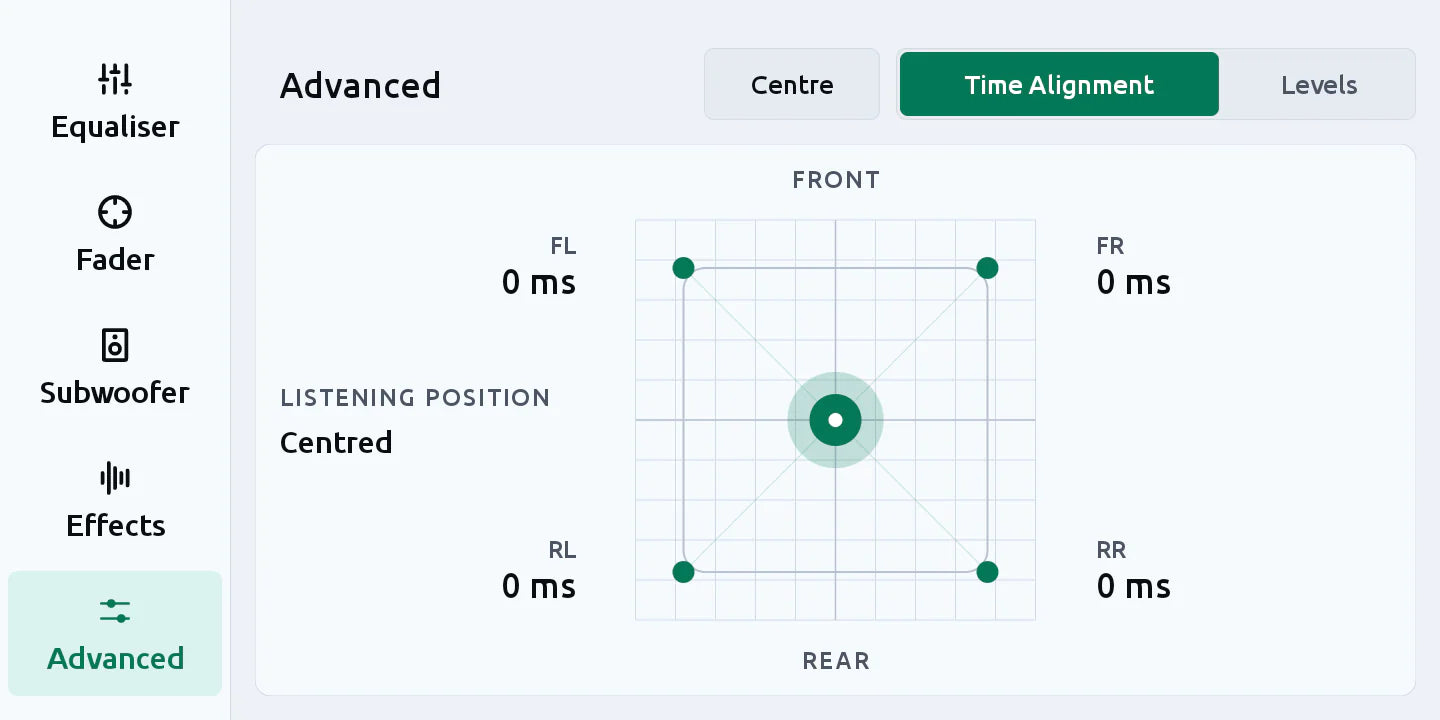
- Time Alignment sets the Listening Position: the seat the speakers’ delays are set for. Replacing the time alignment set in the car asks first, as it can’t be undone.
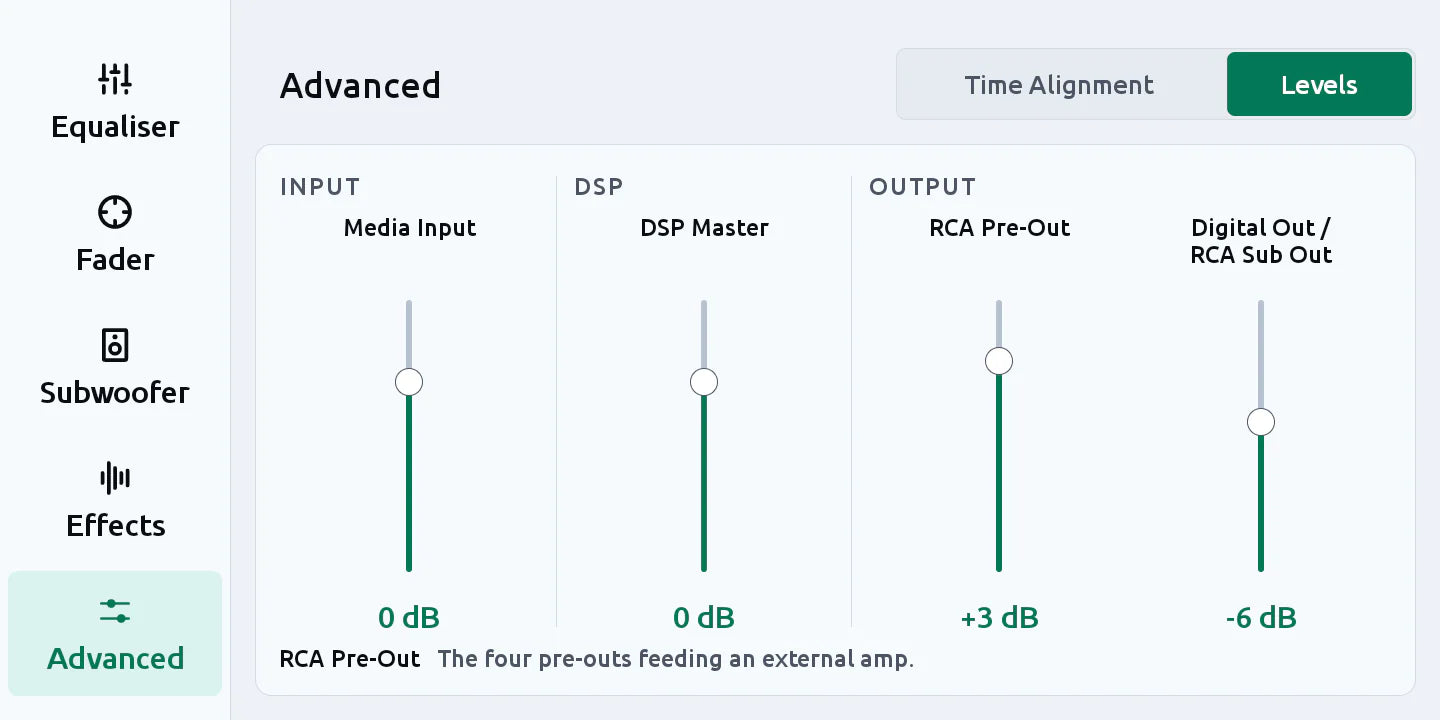
- Levels sets Media Input (music, navigation and Bluetooth from the MFD), DSP Master (the overall level before all outputs), RCA Pre-Out (the four pre-outs to an external amplifier) and Digital Out / RCA Sub Out.
TUNE updates the TUNE MFD from TUNE’s update service: its software, the TUNE Application and the MFD firmware. Software Update requires the internet: Wi-Fi or a phone’s hotspot.
Some updates install automatically when the ignition turns off. Others ask first, in a sheet over the screen with the update’s own name and notes.
- Tap Install Now, or Later to be asked again after the car next starts. The sheet says Installing the Update…, with Hide. Hidden, the update keeps installing.
- Tap Done when it says Update Complete. If it says Restart Required, tap Restart Now, or Later: see Restart to Finish an Update.
An update of the TUNE MFD software asks first to download, with its size on Download Now. When it has downloaded, the sheet says Update Downloaded, with Install Now.
A sheet closes, as if Later was tapped, when a camera shows, a call starts, the ignition turns off, or CarPlay or Android Auto comes to the front.
Settings, then About, then Software Update shows the updates waiting, and each one’s progress.
 Zoom
- The top line says The TUNE MFD Is Up to Date, or No Updates Waiting, and when TUNE’s update service last answered.
- Check Now checks for updates.
- Each update waiting shows its name, its progress, and Install Now or Download Now.
- Restart Required shows when an update finishes at a restart, with Restart Now.
- This MFD shows the Software Version, the MFD Firmware Version and the MFD ID.
A dimmed button says why when it’s tapped, such as “Unavailable during a call.”
Some updates finish at a restart. The MFD restarts for them automatically at an ignition off where it can. Otherwise, after the car next starts, it asks: Restart Required, with Later and Restart Now.
- Restart Now restarts the MFD. The screen says “The TUNE MFD is now restarting…”, then the MFD starts again: see Starting Up.
- With Later, the MFD asks again after the car next starts.
The MFD firmware runs the MFD’s connection to the car: the ignition, the lights, reverse, the radio’s tuner and the amplifier. When TUNE releases MFD firmware, the MFD asks first, in a sheet: MFD Firmware Update Available, with Later and Update Now.
Warning
Keep the ignition on during the update process.
- Tap Update Now. The screen says Updating the MFD Firmware… over a bar, and takes no touches.
- Wait for the update to end. The MFD restarts automatically, and the screen says “The TUNE MFD is now restarting…”.
During the update, HOME, TUNE and VOICE are unavailable, and calls ring on the phone.
Troubleshooting
If Software Update says “There’s no internet connection.”
Connect the TUNE MFD to Wi-Fi or a phone’s hotspot: see Wi-Fi.
If Software Update says “The TUNE MFD’s clock is wrong.”
Turn on Set Date and Time Automatically: see Set the Date and Time.
If an update says “There isn’t enough storage on the TUNE MFD.”
The update waits, and the MFD asks again once there’s enough storage.
If Software Update says “TUNE’s update service is unavailable.”
The MFD tries again automatically.
If an update ends with “MFD Firmware Update Failed”
Tap Close, and contact TUNE: see Get Help.
If Software Update says “Software Update Unavailable”
Contact TUNE: see Get Help.
- Open Settings, then About.
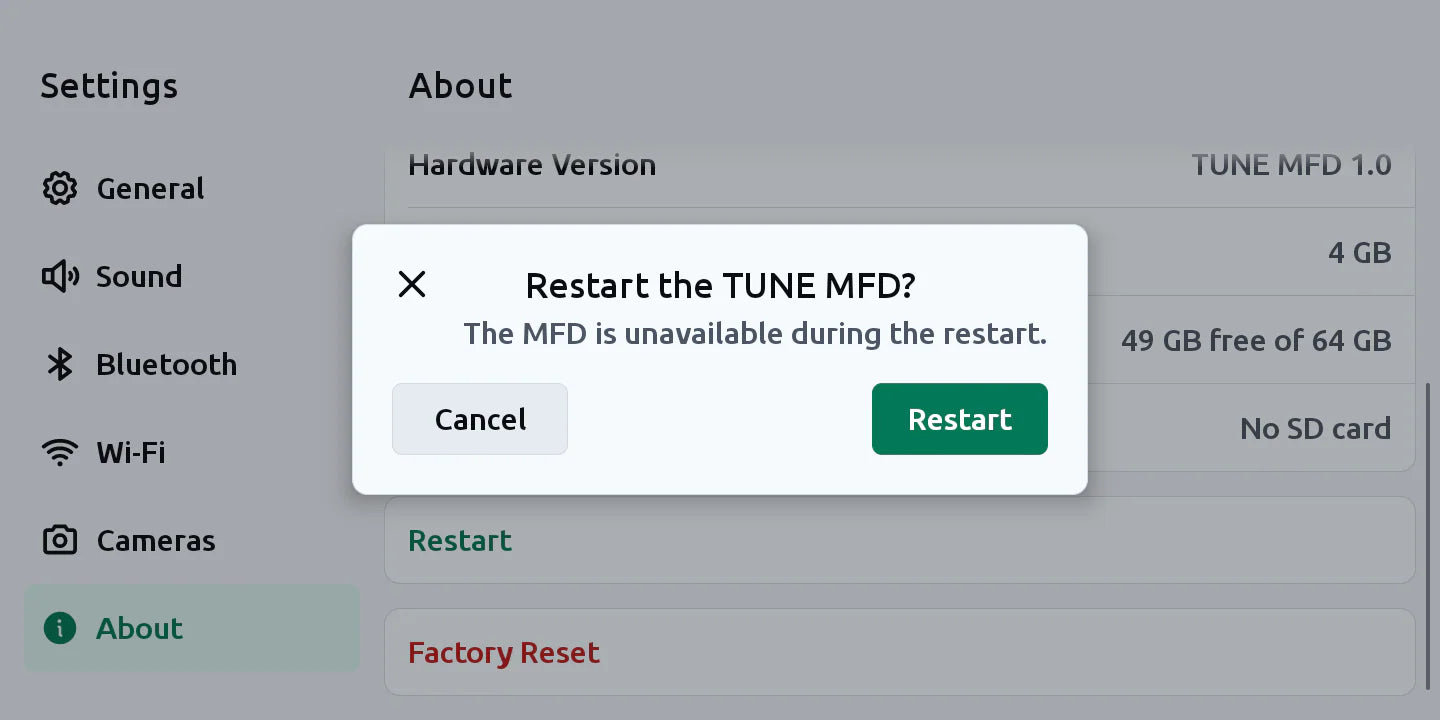
Tap Restart. The sheet asks Restart the TUNE MFD?
 Zoom
- Tap Restart. The screen says “The TUNE MFD is now restarting…”, then the MFD starts again: see Starting Up.
An ignition off and on isn’t a restart: the MFD sleeps and wakes.
A factory reset erases everything on the TUNE MFD and restores its factory settings: paired phones, Wi-Fi networks, settings, and the TUNE Application with its settings and sign-in. It can’t be undone.
Important
Keep the MFD on until the home screen appears. The MFD restarts during the reset, and the erasing continues after that restart.
- Open Settings, then About.
- Tap Factory Reset. The sheet asks Erase the TUNE MFD?
- Tap Erase. The screen says Erasing the TUNE MFD…, and the MFD restarts automatically during the reset.
- Wait for the home screen.
A factory reset doesn’t start while an update installs. If it didn’t start, the screen says “The factory reset didn’t start. Nothing was erased.”
For a car with a TUNE MFD, send a request from Support (opens in a new tab) in TUNE Analytics. TUNE replies by email. The TUNE Analytics Guide covers the steps: Contact Support.
For anything else, email contact@tunemfd.com.
Include the MFD ID and the Software Version from Settings, then About, then Software Update in any request.
Updated